Where iMessages are actually stored on a Mac
Messages does not store your conversations in the cloud, in the app bundle, or in a document you can drag somewhere. It keeps them in a database in your home folder, and once you know where it is, a lot of confusing behaviour starts making sense.
This page covers the exact locations, what each file is for, how to look at them without damaging anything, and the specific reasons a straight copy of the folder often does not work.
The location
Everything lives under your own home folder, in a hidden Library directory:
- ~/Library/Messages/chat.db is the main database. Every message, every conversation, every timestamp.
- ~/Library/Messages/chat.db-wal is the write ahead log. Recent messages can live here and not yet be in chat.db.
- ~/Library/Messages/chat.db-shm is shared memory used to coordinate access to the database.
- ~/Library/Messages/Attachments holds photos, videos, and files, in nested folders with generated names.
- ~/Library/Messages/StickerCache holds sticker and reaction art.
The tilde is your home folder, so for a user named alex the full path is /Users/alex/Library/Messages. This is the per user Library inside your home folder, not the /Library folder at the top of the disk. They are different directories and only the one in your home folder holds messages.
How to open the folder
The Library folder is hidden by default. In Finder, choose Go from the menu bar, then hold the Option key and Library will appear in the menu. Or choose Go, then Go to Folder, and enter the path directly.
Look, do not edit
Opening the folder is safe. Editing chat.db while Messages is running is not, and can corrupt the database in a way that loses conversations. If you want to inspect the data, quit Messages first and work on a copy, never the original.
What chat.db actually is
It is a standard SQLite database. That is good news, because SQLite is an open, well documented, extremely stable format, and it means your history is not locked inside a proprietary file that only Apple can read.
The structure that matters is small. Four tables carry almost everything:
- message holds the individual messages, their text, timestamps, and whether they were sent or received.
- handle holds the phone numbers and email addresses of the people you talk to.
- chat holds the conversations, including group threads.
- attachment holds pointers to the files in the Attachments folder, not the files themselves.
Because the attachment table only stores paths, a copy of chat.db on its own gives you every word and no pictures. The database and the Attachments folder have to travel together or the media is lost.
Timestamps are not normal timestamps
Dates in chat.db are stored as nanoseconds since 1 January 2001, which is Apple’s reference date rather than the Unix epoch of 1970. A tool that reads them as ordinary Unix time will place your entire history about 31 years in the past.
This is the single most common bug in home made export scripts, and it is worth knowing about, because a set of exported messages with visibly wrong dates is worse than no export at all if you ever need someone to trust it.
Why copying the folder often fails
Dragging ~/Library/Messages to an external drive feels like it should work. Sometimes it does. Often it produces an archive that is missing recent conversations or will not open at all, for three reasons.
The write ahead log
SQLite writes new data to chat.db-wal first and folds it into chat.db later. Copy chat.db alone while Messages is running and the most recent messages, sometimes weeks of them, are still sitting in the log file you did not copy.
Copying a live database
A file being written to while it is copied can produce a corrupt result. The copy looks like it worked, the file size looks right, and it fails to open later when you actually need it. Quitting Messages before copying avoids this.
Full Disk Access
macOS protects ~/Library/Messages specifically. Finder can see it because you granted Finder access long ago, but any app that wants to read it must be given Full Disk Access in System Settings, under Privacy and Security. An app without that permission sees an empty folder rather than an error, which is why some tools report finding no messages on a Mac that clearly has thousands.
Local iPhone backups are a second copy
If you have ever backed up an iPhone to this Mac, there is another copy of a message database on the disk, from whenever that backup was made. Those live under ~/Library/Application Support/MobileSync/Backup, in folders with long hexadecimal names.
Inside a backup the files are renamed to hashes, so the message database is not called chat.db there and cannot be found by browsing. It has to be located through the backup’s own manifest.
These backups are frequently the only surviving copy of conversations that were later pruned from the Mac, which is a good reason not to delete old ones to reclaim space. An encrypted backup needs its password before anything can be read out of it.
Reading it yourself
If you are comfortable in Terminal, you can copy the database to your Desktop and open it read only without touching the original. Quit Messages first.
- Quit Messages completely.
- Copy all three database files together, not just chat.db, so the write ahead log comes with it.
- Open the copy with sqlite3 and query the message table.
- Convert the date column from Apple reference time before trusting any timestamp you see.
This is genuinely useful for a one off look. It is a poor long term plan, because you have to remember to do it, the export has no attachments unless you handle those separately, and a folder of text you produced yourself carries no evidence that it was not edited afterwards.
Where Message Archive fits
Message Archive handles the awkward parts of the above. It reads chat.db together with its write ahead log so recent messages are not missed, keeps attachments with the messages they belong to, converts Apple reference timestamps correctly, and finds local iPhone backups and merges their conversations in alongside the ones on the Mac.
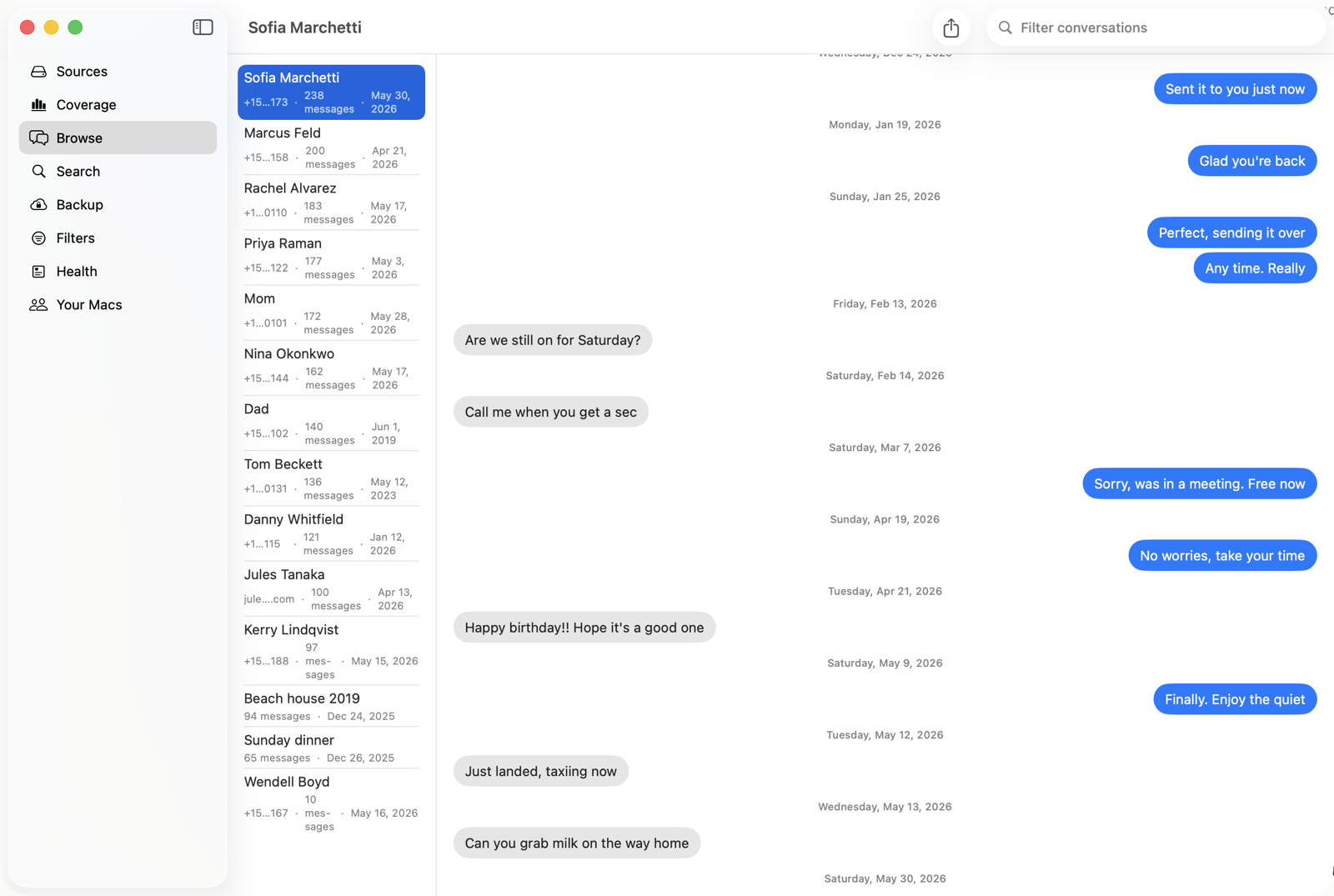
It reads the Messages database read only and never writes to it. The archive lives wherever you choose, outside ~/Library/Messages, which means it is not affected by the Keep Messages setting, by iCloud sync, or by macOS clearing attachments when storage runs low.
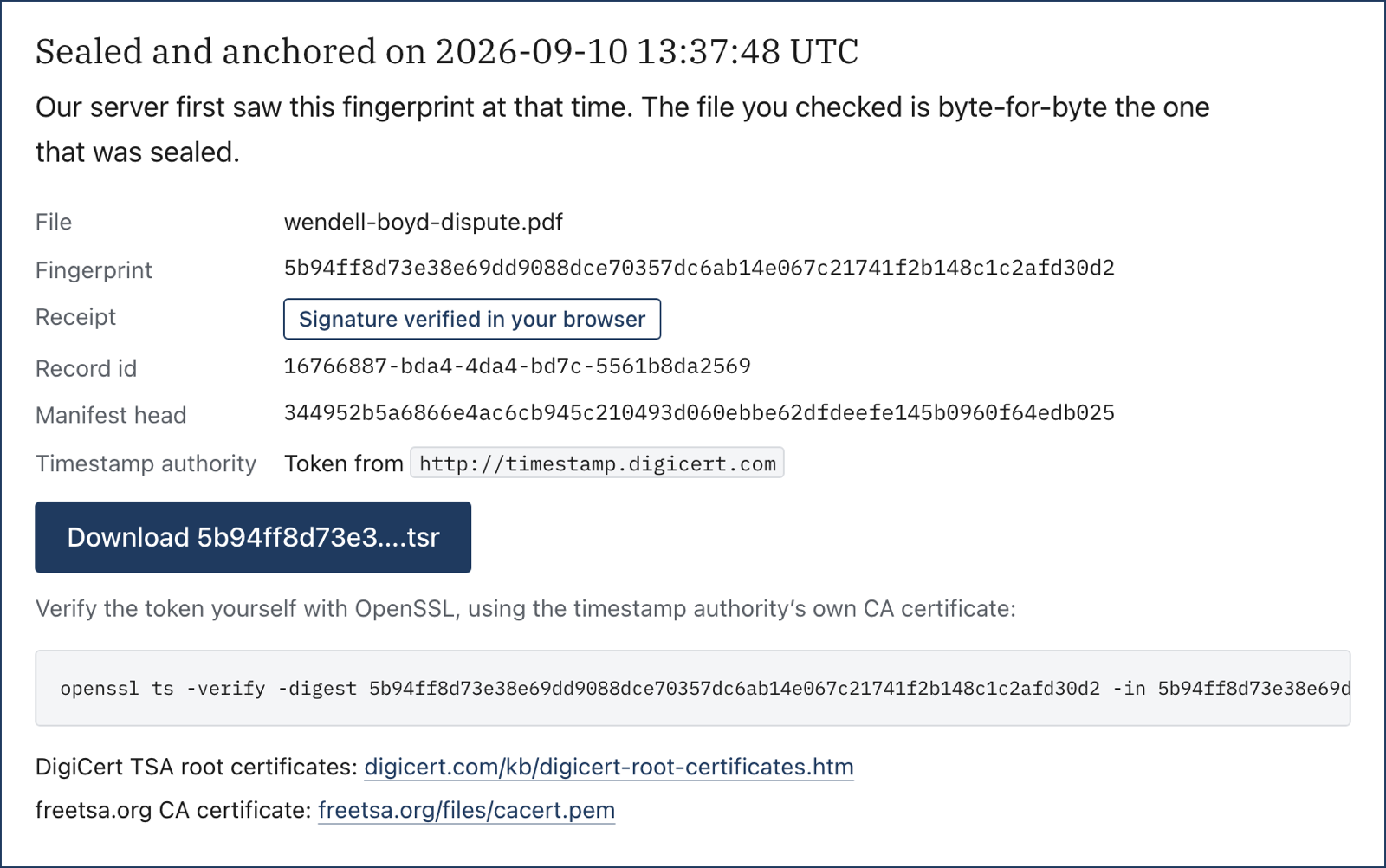
It can also produce a sealed export, which is a copy carrying a cryptographic seal and an independent RFC 3161 timestamp from a third party. Anyone can check that seal at our verify page without buying anything, and it establishes that the file has not been altered since the timestamp. It is a tamper evident, independently timestamped record. Whether any particular person or process accepts it is their decision, not something software can promise.
$47 per year, per Mac. 14-day free trial, no account needed to try it.
The short version
- Messages live in ~/Library/Messages/chat.db, a normal SQLite database.
- chat.db-wal holds recent messages that are not in chat.db yet, so copy all three files together.
- Attachments are separate files, and the database only stores paths to them.
- Timestamps use Apple reference time, not Unix time, and are off by 31 years if read wrong.
- Any app reading this folder needs Full Disk Access, or it will see nothing at all.
- Old iPhone backups on the same Mac often hold conversations the Mac itself has already lost.
Common questions
Where are iMessages stored on a Mac?
In your home folder at ~/Library/Messages. The main database is chat.db, with chat.db-wal and chat.db-shm alongside it, and media in an Attachments subfolder. The Library folder is hidden by default; hold Option while opening the Go menu in Finder to see it.
Can I just copy chat.db to back up my messages?
Not reliably on its own. Recent messages may still be in chat.db-wal, so all three database files need to be copied together, and Messages should be quit first because copying a live database can produce a corrupt file. Attachments also need copying separately or the media is lost.
Why does my export show messages dated in the 1970s?
The database stores dates as nanoseconds since 1 January 2001, Apple’s reference date. A tool that reads them as Unix time, which counts from 1970, will shift every message about 31 years into the past.
Why does an app say it found no messages when I have thousands?
It almost certainly lacks Full Disk Access. macOS protects the Messages folder and returns an empty result rather than an error, so the app genuinely sees nothing. Grant it access in System Settings, under Privacy and Security, then Full Disk Access.
Are my messages stored in iCloud instead of on the Mac?
With Messages in iCloud turned on, your Mac still keeps a local database; iCloud keeps devices in sync rather than replacing local storage. Because it is sync and not backup, deleting a conversation on one device removes it from the others too.
Can I read messages out of an old iPhone backup on my Mac?
Yes, though not by browsing. Backups live under ~/Library/Application Support/MobileSync/Backup and their files are renamed to hashes, so the message database must be located through the backup’s manifest. If the backup is encrypted you need its password first.
Keep the history you still have
Message Archive merges the messages on your Mac with the ones in your iPhone backups and keeps them in a vault outside the Messages app, where nothing can prune them. It reads your Messages database read only and everything stays on your machine.
$47 per year, per Mac. 14-day free trial. Cancel any time. Requires macOS 14 or later.
Weighing it against something else? We keep honest comparison pages, including the parts where the other tool is the better buy.
Read next
Why macOS deletes your old messages, and how to stop it
macOS is set to throw away message history on a timer, and the setting is easy to miss. Here is what actually removes your old texts, how to check your own Mac in under a minute, and how to keep the history you still have.
Keep Messages is set to Forever and messages still disappeared
Forever is a real setting and it does work, but it only governs one kind of deletion on one device. Here are the six other things that remove messages regardless of it, how to tell which one hit you, and what to do about each.
How to print or export text messages for a court case
A plain English guide to getting text messages off an iPhone or Mac and into a form you can hand to a lawyer or file with a court, including what a screenshot does and does not show, and how to make an export that can be checked by someone who does not trust you.